
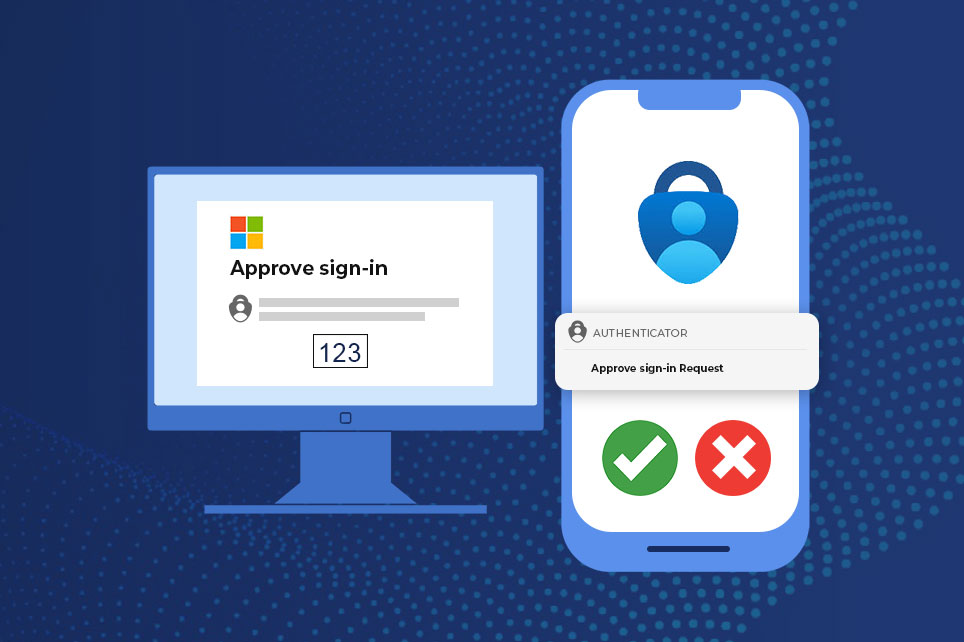
Microsoft Authenticator MFA Registration
Register Today for Microsoft Authenticator
Memorial Healthcare System is transitioning from Duo to Microsoft Authenticator as our two-factor authentication method by September 30, 2026. If you use Duo, please register for Microsoft Authenticator today if you have not already done so.
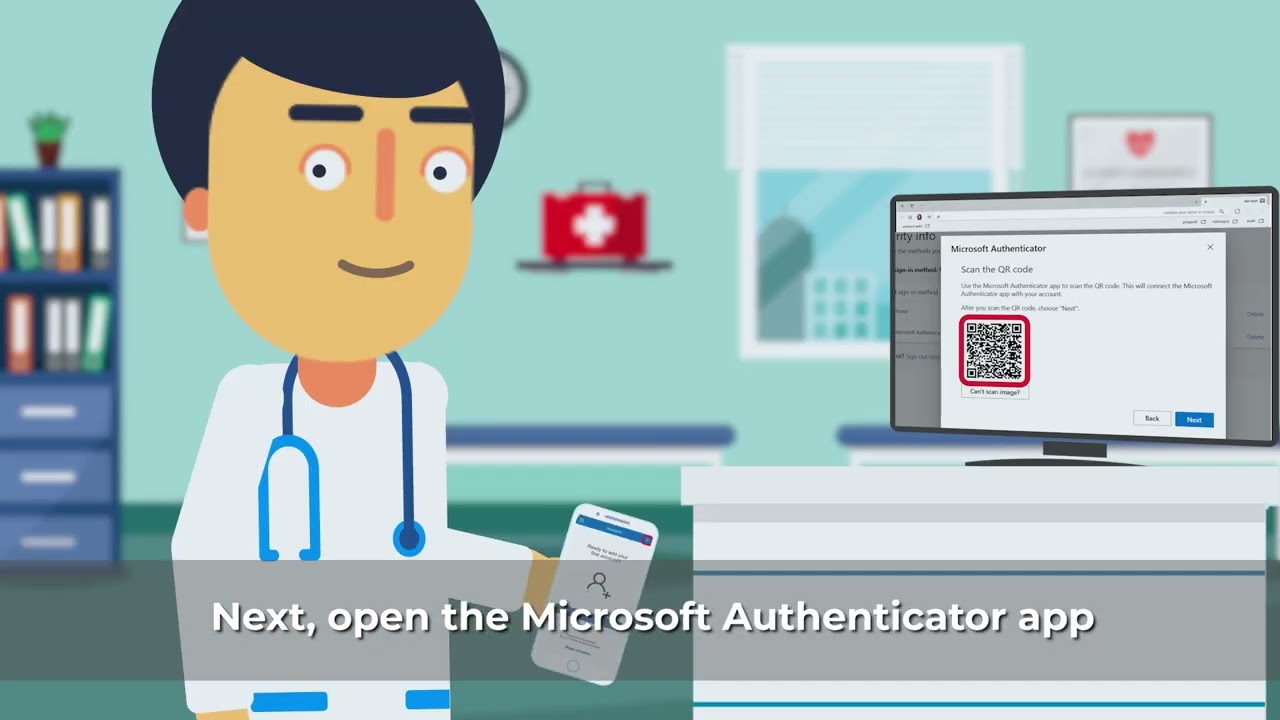
Duo to Microsoft Authenticator: How to
Important
Even if the Microsoft Authenticator app is already installed on your phone and displays your MHS email, you must still complete the registration steps below. However, if you are already using Microsoft Authenticator for MFA with Memorial, no further action is required.
To complete registration, read and precisely follow all four steps using both your phone and your computer.
Phone Setup Tips for Successful Registration
If the Microsoft Authenticator app is already installed, do the following first:
- Update the app. Open your app store and install any available updates before proceeding.
- Enable notifications. Confirm that notifications for Microsoft Authenticator are turned on in your phone settings.
How to Register
To complete registration, perform these steps on a computer and your mobile phone as indicated below. Activation will follow as a separate step.
1. Open the MFA Setup Page on a Computer
- On your computer, open a web browser.
- Navigate to https://aka.ms/mfasetup.
- Sign in using your MHS email address and password, if prompted.
2. Begin Setup on a Computer
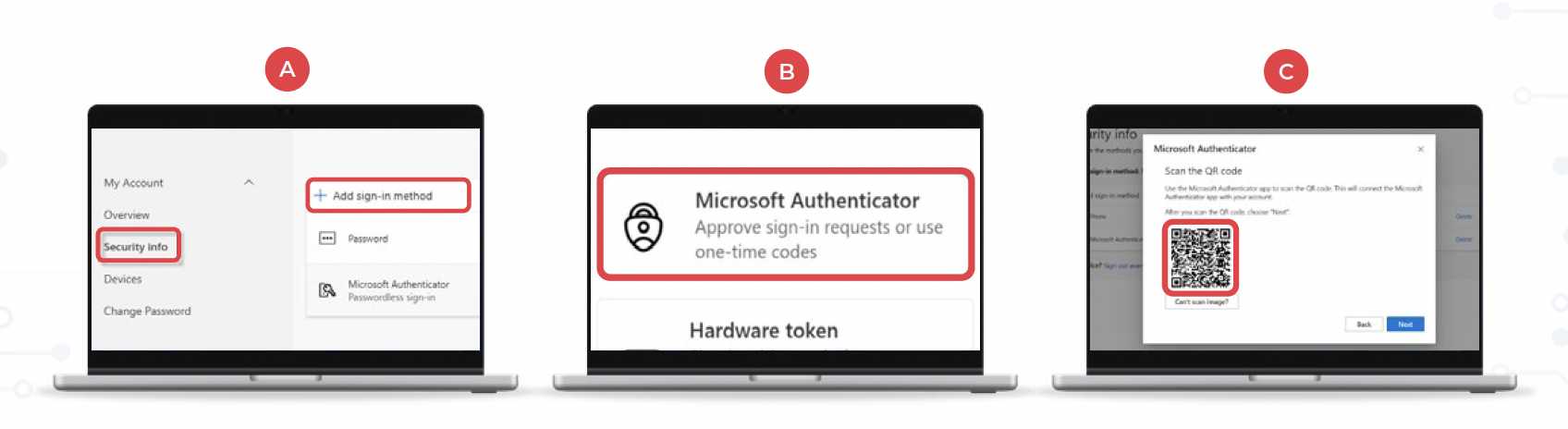
- After signing in, navigate to the Security info section.
- Select + Add sign-in method. (Screen A)
- Select Microsoft Authenticator. (Screen B)
- Select Next until a QR code is displayed on the computer screen. You will use this QR code in Step 3. (Screen C)
3. Configure Microsoft Authenticator on Your Phone
- On your phone, open the Microsoft Authenticator app.
- Tap the + button in the top-right corner to add an account. (Screen A)
- Select Work or school account.(Screen B)
- Tap Scan QR code. (Screen C)
- Use your phone's camera through the Microsoft Authenticator app to scan the QR code displayed on your computer screen.

4. Complete Verification
- On your computer, a test notification will appear prompting you to approve a number match.
- On your phone, enter the number displayed on your computer screen into the Microsoft Authenticator app.
- Once approved, select Done on the computer.
Day 2: Activation by IT
MHS IT will activate the policy the evening after you register, requiring you to authenticate using Microsoft Authenticator instead of DUO when accessing applications.
Reminder
DUO push notifications will continue for select applications until all are converted in September 2026.
Need Help?
For more information, contact the MHS IT Service Desk at 954-276-4848 .